

An AI Santa is a Santa message that software helps write, voice or animate, so it can say your child’s name and mention things that are true about their year. The best version for a kid aged 3 to 8 is a short video you have read and approved first. That is how our free Santa video works: you answer four quick questions, the AI drafts the script, you edit it, and Santa says it in his own voice. It costs nothing, with no trial and no credit card.
Below: what “AI Santa” covers, how the tools differ, what to put in the message, and the privacy basics every parent should know before a child sees one.
TL;DR
- “AI Santa” covers pre-made videos, live-style calls and chats, avatar filters and personalized video messages. For ages 3 to 8, a short video you approve beforehand is the simplest fit.
- A good personalized message needs four details: your child’s name, age, one real achievement this year and one goal for next year.
- Give any AI tool a first name or nickname only. No surname, school, address or photo unless you are deliberately adding family photos to a video you control.
- Our free one-minute video is ready in a few minutes and is shared by link. The Magic Santa Video upgrade is a one-time $7, not a subscription.
- Tell your child plainly, in your own words, that this Santa is a special helper made with a computer. The magic survives it.
Table of Contents
- What people mean by “AI Santa”
- Why a scripted video suits ages 3 to 8
- How an AI-written Santa message works
- What to put in the message so it feels personal
- Free versus paid: what each usually includes
- Creating, saving and sharing the video
- Privacy and safety: what every parent should check
- Match the format to the age
- Ideas for different families
- When you are ready for more
- FAQ
- Sources
What people mean by “AI Santa”
Search for the term and you will find several quite different things under one name:
- Personalized video messages. You enter details, the tool writes a script and produces a Santa video. TechRadar’s walkthrough of one such tool describes picking a template, writing a message and getting a lifelike Santa video by email within minutes.
- Live-style calls and chats. An AI answers back as Santa in real time. These are the most interactive, and the ones that need the most parental supervision.
- Avatar and filter apps. These turn you, your baby or a photo into Santa. Fun for a laugh, but they are not a message from Santa to your child.
- Scene generators. These place Santa in a photo of your living room. Entertaining, though the result is a gimmick more than a message.
Which one is right depends on your child’s age and what you want from the moment. A three-year-old wants to hear Santa say their name. An eight-year-old wants Santa to know what they did this year. Both are served well by a short, scripted video, because you control every word.
Why a scripted video suits ages 3 to 8
A live AI conversation can wander. A child asks something unexpected, and the answer is whatever the system produces. A recorded video cannot do that. You review it once, and every viewing afterward is exactly what you approved.
There is also a plain developmental reason. Young children love repetition: the same video, watched forty times, is a feature. A video you can replay, forward to grandparents and watch again on Christmas Eve gives you more than a one-off chat does.
If your child is older and keen on talking, our guide to an online chat with Santa for ages 3 to 8 covers how to approach that format.
How an AI-written Santa message works
The process behind most personalized tools is the same in outline:
- You supply details about the child.
- A language model turns them into a script in Santa’s voice.
- Text-to-speech or a recorded voice delivers it, with video around it.
- You get a link or file to share.
Where tools differ is in the points that matter to a parent: whether you can read and change the script before it is voiced, whether the name is actually spoken or just shown on screen, and whether you need an app. The TechRadar piece notes that its featured platform screens submitted scripts to keep messages family-friendly, which shows that script content is a real consideration in this category.
Our approach is built around the parent. You answer four questions: the child’s name, age, something they achieved this year and a goal for next year. The AI writes Santa’s message, and you can read and edit it before Santa records it. He then says it in his warm voice, in his workshop by the fire, and speaks your child’s name out loud rather than showing it as a caption on a stock clip. For a closer look at the format, see our parent’s guide to an AI-generated Santa video.
What to put in the message so it feels personal
The four details matter more than any visual effect. Here is how to choose them well.
The name
Use the name your child answers to. If everyone calls her Evie, write Evie, not Evelyn. If he has a nickname Santa could plausibly use, use that. It also keeps the details you share to a minimum, which is a good habit with any AI tool.
The age
Age shapes vocabulary and length. For a four-year-old, Santa should sound simple and warm. For an eight-year-old, he can be a little more specific and a little more playful.
One real achievement
This is the line that makes a child sit up. Pick something concrete and true:
- “learned to ride a bike without training wheels”
- “read your first chapter book”
- “was brave at the dentist”
- “started being a kind friend to the new kid in class”
- “learned to swim across the pool”
Specific beats general. “You were a good kid” is forgettable. “Santa heard you helped your little brother tie his shoes” is the sentence a child repeats at dinner.
One goal for next year
Keep it encouraging and within the child’s own control: learning to play a song, trying a new sport, reading to a grandparent. Santa can say he believes in them. Avoid framing it as a condition for gifts.
Keep the promises honest
Santa messages work best when they celebrate and encourage rather than promise specific presents or outcomes. Do not let the script say a particular toy is coming unless you are sure it is. Do not use the video as a threat about behavior. You can read and edit the script before it is recorded, so check for both.
Free versus paid: what each usually includes
Tools in this category tend to sort into two tiers: a basic message, and a fuller production with extras. The extras are typically length, personal photos or clips, visual style and download quality. Here is how ours breaks down, as published on our offer page.
| Free Santa Video | Magic Santa Video | |
|---|---|---|
| Price | $0 | $7, one time |
| Length | About one minute | Two minutes or more |
| Personalization | Name, age, achievement and goal | Same story, plus up to 5 family photos or clips on Santa’s TV |
| Style | Santa in his workshop by the fire | 3D animated style |
| Sharing | Link for the whole family | 1080p download |
| Account | Free Google or email account saves it | Same story, expanded |
The free video is free for real: no trial, no card and no catch. The upgrade is a single purchase, not a subscription, so there is nothing to cancel in January.
Most families start with the free one. If it lands well and you want to add photos of the dog, the new baby or last summer’s trip, you can turn the same story into the Magic Santa Video.
Creating, saving and sharing the video
There is no app to install. It runs in your browser on a phone, tablet or laptop.
- Open the free video page. Go to our Santa video page.
- Answer the four questions. Name, age, an achievement, a goal. Take a minute over the achievement.
- Read the script. The AI writes Santa’s message. Change anything that does not sound like your child or your family.
- Let Santa record it. He says the message aloud and speaks your child’s name.
- Save it. A free Google or email account saves the video so you can find it again.
- Share by link. The one-minute video is ready in a few minutes. Send the link to grandparents, aunts, uncles and anyone who wants to watch with the kids.
Grandparents can create one themselves. If you live far from your grandchildren, a Santa message sent by link arrives instantly and can be watched together on a video call. We have more ideas in our post on Christmas gifts for kids who live far away.
If you would like a personalized page built around your child’s name, start from our personalized Santa video page.
Privacy and safety: what every parent should check
Any tool that handles a child’s name, and especially a child’s voice, deserves a quick check. These are the habits worth building.
Share the minimum. First name or nickname only. Leave out the surname, school, street and town. Add photos only when you decide to, and only to a video you will control.
Know the law’s direction. In the US, the FTC’s updated Children’s Online Privacy Protection Rule, known as COPPA, took effect on 23 June 2025. It strengthened protections for children’s personal information. The practical takeaway for parents: look at how any service describes what it collects, how long it keeps it and how you can delete it.
Watch the first time together. Sit beside your child. With a recorded video, you will already know what Santa says, which makes this easy. With any live-style call, stay in the room throughout.
Use purchase approval. Turn on purchase approval in your phone or tablet’s family settings so a child cannot buy anything by accident.
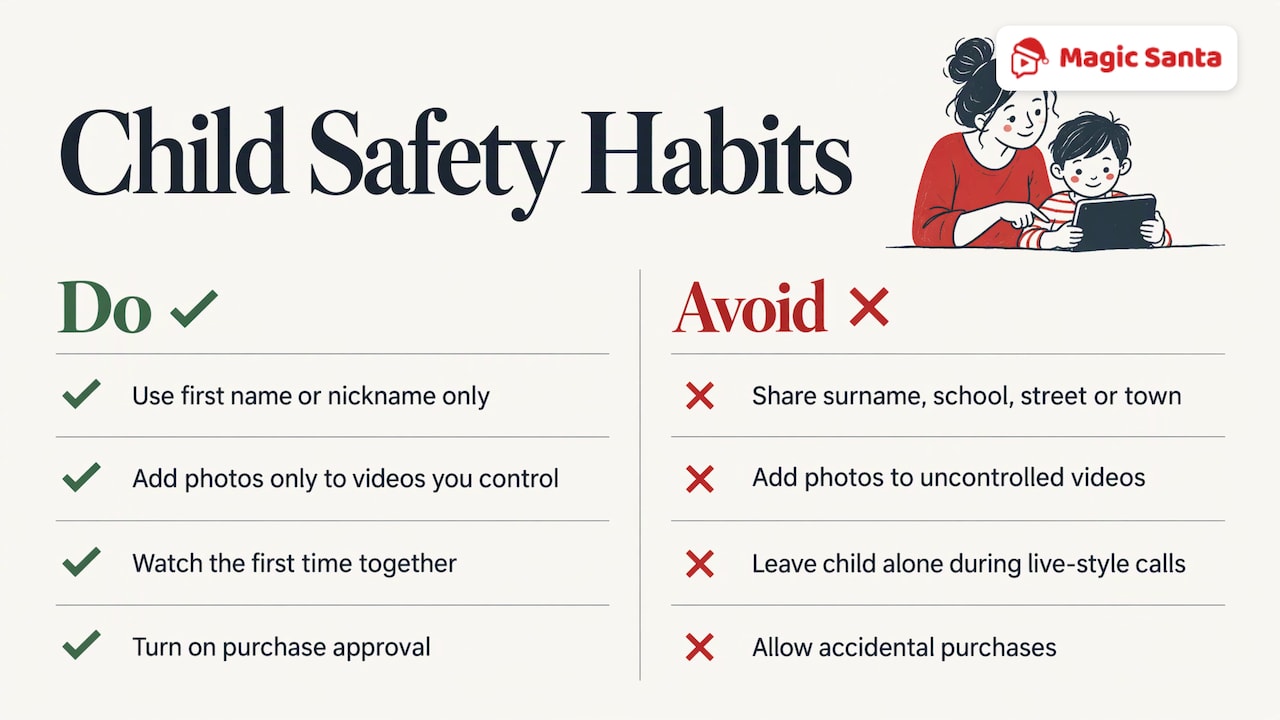
Be clear that this Santa is made with a computer. The UK charity NSPCC, in its AI safety tips for parents, reminds families that not everything children see online is real. You do not have to break the spell. Many parents describe it as a special Santa helper made with computer magic, so the child understands the difference between a person and software while still enjoying the story.
Match the format to the age
| Age | What tends to work |
|---|---|
| 3 to 4 | A short video that says their name, watched with you and replayed often |
| 5 to 6 | A video with a real achievement in it; they will want to show it to everyone |
| 7 to 8 | A video with a goal and a few family photos; older kids notice details and enjoy being recognized |
For kids who are starting to question Santa, a video that celebrates something true about them, rather than a big claim about the North Pole, keeps the focus where it belongs: on the child.
Ideas for different families
- Parents on a budget. The free video gives you a personal Santa moment without spending anything. It is a Christmas Eve ritual that does not need a gift receipt.
- Grandparents. Fill in the form with the details your son or daughter tells you, send the link to the family and watch it together over a call.
- Rewarding a big year. A first reading level, a lost tooth, a school award: put it in the achievement line and let Santa say it.
- Siblings. Make one video per child so each hears their own name and their own achievement. Nobody gets the generic one.
- Families switching from a pre-made video service. If you have used a template-based Santa video before, the difference here is that Santa speaks your child’s name and the message comes from the details you give.
When you are ready for more
If the free video is a hit, the Magic Santa Video turns the same story into a longer film for a one-time $7: two minutes or more, up to 5 family photos or clips appearing on Santa’s TV, a 3D animated style and a 1080p download. You can see both options on our Santa video page, or begin from the home page.

We also write about related formats, such as a Santa voice message for kids and the North Pole Santa video. Our blog collects message ideas for each.