
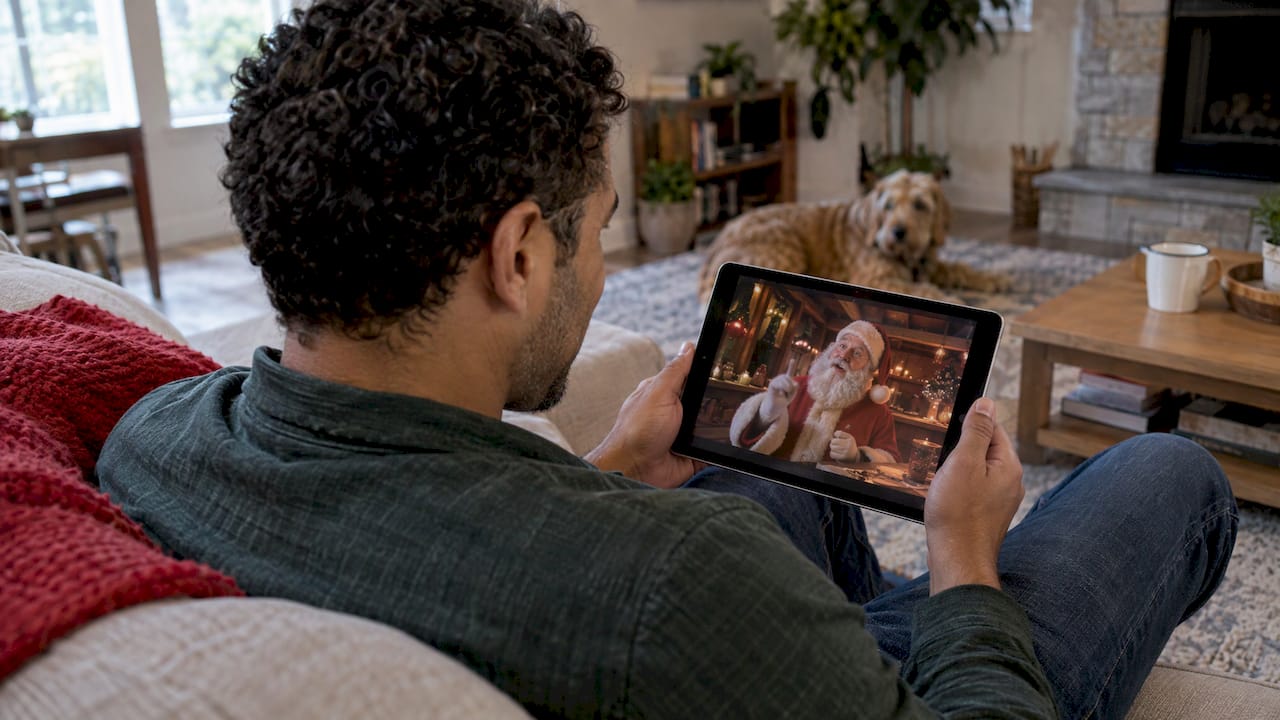
An AI-generated Santa video turns a few details about your child into a short film where Santa says their name, mentions something they did this year and wishes them well. You can make one for free in a few minutes, with no app and no card. Our free version takes four answers from you, drafts the script with AI, lets you edit every line, then has Santa record it in his workshop by the fire. This guide covers how these videos work, what to write so the message lands, what costs extra, and how to keep it safe and believable for a child aged 3 to 8.
TL;DR
- An AI Santa video is built from your answers: the AI writes the script, a voice reads it, and Santa appears to speak it. The best ones let you read and edit the script first.
- Our free video asks four things: your child’s name, age, something they achieved this year and a goal for next year. It runs about one minute and arrives by link in a few minutes.
- The free video is free for real. The optional Magic Santa Video is a one-time $7, with no subscription.
- Use a first name or nickname only, and skip surnames, school names and addresses.
- Grandparents can make one from anywhere and send the link to the family.
Table of Contents
- What an AI-generated Santa video actually is
- How to make one, step by step
- What makes a personalized holiday video feel real to a child
- Free versus the $7 upgrade
- Sending one as a grandparent
- Keeping it safe and believable for young children
- Free Santa Video and the Portable North Pole-style alternative
- Make yours now
- Ideas for what Santa can say
- FAQ
- Sources
What an AI-generated Santa video actually is
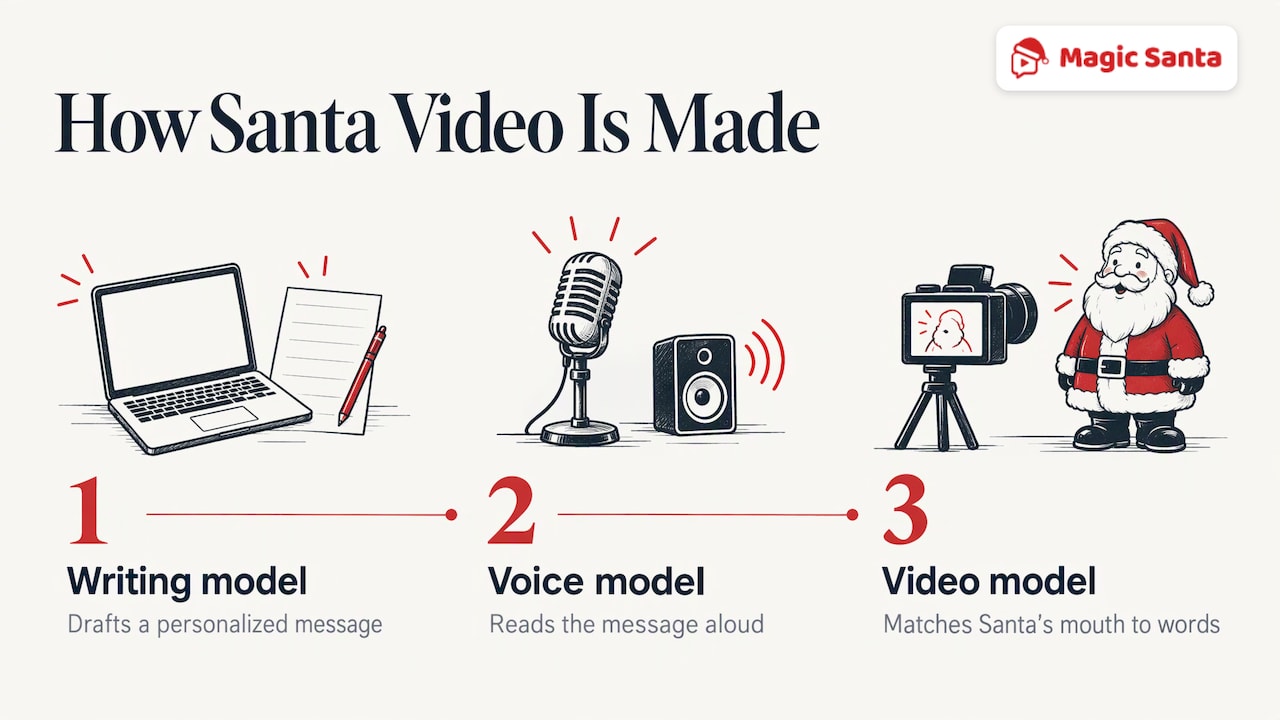
Three pieces of software do the work. A writing model drafts the message from the details you give it. A voice model reads that message aloud. A video model makes Santa look as if he is speaking it, with his mouth matching the words. The result is a short film that feels made for one child, because the child’s own name and year are in it.
That is different from the older kind of “personalized” Santa clip, where a stock video plays and the child’s name appears as a caption or a bleeped-in word. When Santa says “Ella” in the middle of a sentence, in the same warm voice as the rest, a four-year-old hears it as Santa knowing her.
Search results for this topic show a lot of generators built for business-style avatars, with menus of faces, languages and voice cloning. For a parent of a preschooler or early grade-schooler, most of that is noise. What matters is simpler: does Santa sound and look like Santa, can you control what he says, and is it easy to share with Grandma?
How to make one, step by step
The process is short, but each step has a place where a video can go wrong. Here is the routine, with what we do at each point.
1. Gather four details before you start
Have these ready so you are not typing under pressure:
- Your child’s first name, spelled the way you want it said.
- Their age.
- One thing they achieved this year.
- One goal for next year.
These are the same four questions our free video asks, so you can answer them in under two minutes. The pitfall is vagueness. “Be good” gives the AI nothing to work with. A specific achievement gives Santa something to be proud of.
2. Write the achievement and the goal like a parent, not a form
The AI turns your short answers into warm, full sentences. Give it the raw material:
- Weak: “Did well at school.”
- Better: “Learned to read her first chapter book all by herself.”
- Weak: “Be nicer.”
- Better: “Keep taking turns with his little sister without being reminded.”
For a three- or four-year-old, think small and visible: tying shoes, sleeping in a big-kid bed, finally trying broccoli. For a seven- or eight-year-old, a goal they chose themselves works best, such as learning to swim without a floatie or practicing piano five days a week.
3. Read the script and edit it
This is the step that separates a video you are happy to send from one you hope turns out fine. With us, the AI writes Santa’s message and you read it before Santa records anything. Change any line you like. Fix a nickname, drop a phrase your child would find confusing, add an inside joke.
Things worth checking as you read:
- Length and words. Short sentences work best for ages 3 to 5. Swap any big word for a simple one.
- Promises. Santa should not promise a specific toy. That is your decision, not his.
- Tone about behavior. Praise the achievement. If a goal reads like a scolding, soften it.
4. Let Santa record it
Once you approve the script, Santa says it in his own voice, in his workshop by the fire, and speaks your child’s name out loud. The one-minute video is ready in a few minutes.
5. Save it and share the link
The video is shared with the whole family by link. A free Google or email account saves it, so it is still there on Christmas Eve and next year. No app is needed, so it opens on a phone, tablet or laptop, which matters when you are sending it to relatives who do not install things.
A practical tip: watch it once alone first. Then pick the moment. Many parents play it on the couch after dinner or right before bed in December, with the phone cast to the TV.
What makes a personalized holiday video feel real to a child
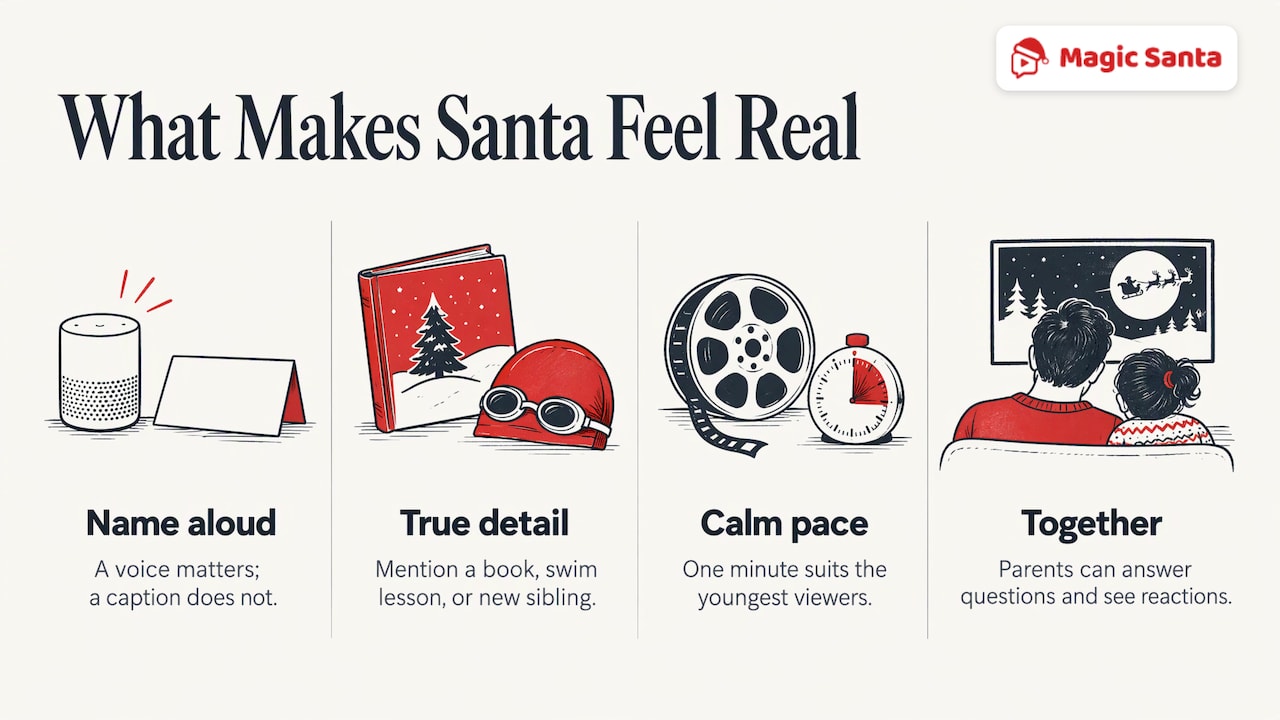
Children aged 3 to 8 are the target age for this, and they judge Santa by a few things.
Their name, said aloud. A caption does not do it. A voice does.
One true detail. Santa mentioning the chapter book, the swim lesson or the new baby brother is the moment kids remember. It also gives you a way to praise the achievement without lecturing.
A calm pace. Preschoolers lose interest in long clips. A one-minute video is about the right length for the youngest viewers, and older kids will happily watch it twice.
A parent in the room. Watching together lets you answer questions, and it lets you see the reaction. That reaction is often the part you will want to keep.
If you want a gift that rewards an achievement without adding another toy to the pile, a message from Santa about something your child worked on is hard to beat. Our guide to meaningful Christmas gifts for kids 3 to 8 goes further on that idea.
Free versus the $7 upgrade
The free video is a complete product, not a teaser. Here is how it compares with the optional upgrade.
| Free Santa Video | Magic Santa Video | |
|---|---|---|
| Price | $0, no trial, no card | $7, one time |
| Length | About one minute | Two minutes or more |
| Photos and clips | None | Up to 5 family photos or clips shown on Santa’s TV |
| Style | Santa in his workshop | 3D animated style |
| Download | Share by link | 1080p download |
| Script | Your answers, editable | The same story, expanded |
The Magic Santa Video turns the same story into a longer film. Santa can “watch” your family photos or clips on his TV, which is a lovely touch for a child who has had a big year: a birthday, a first day of school, a trip to see cousins. It is a single payment, not a subscription, so nothing renews in January.
Most families who just want a sweet Christmas surprise will be happy with the free one. The upgrade is there for families who want a keepsake with their own pictures in it, or a file to download and keep.
Sending one as a grandparent
Grandparents are some of the happiest users of this kind of video, because distance stops mattering. If you are a grandparent:
- Ask a parent for the child’s first name, age and one recent achievement. This also keeps the surprise from clashing with what the parents are already doing.
- Answer the four questions yourself, with details only a grandparent would know, such as the cookies you bake together.
- Read the script and edit it so it sounds like your family.
- Send the link to the parents, so they can choose when the child watches it.
Sending the link to the parents, rather than straight to a young child’s device, also lets them watch it first and set the scene.
Keeping it safe and believable for young children
A free Santa message is low-risk when you control what goes in. A few habits keep it that way.
Share less about your child
Use a first name or a nickname. Leave out the surname, school, street and town. Santa does not need them, and the message will feel just as personal.
There is a legal reason to be careful with photos and recordings too. In the US, the Children’s Online Privacy Protection Act (COPPA) rule protects children under 13, and its 2025 amendments took effect on June 23, 2025, with operators required to comply by April 22, 2026. Photos and audio of a child’s voice are the kind of material privacy rules treat with particular care. For you, the simple rule is to include only what you would be comfortable sharing in a family group chat.
Watch it together
Children under about 6 can find it hard to tell where a video ends and the real world begins. A pre-recorded message you have read in advance and watch beside them is a gentle way to enjoy Santa. A live back-and-forth with an AI is a different experience, and for the youngest children it is better to save it for when they are a little older. If you do want to try a chat later, our parent’s guide to chatting with Santa for ages 3 to 8 explains what to expect.
Keep the script in your hands
Because you can read and edit every line before Santa records it, nothing goes into the video that you have not seen. That is the biggest safety feature of the whole process: no surprises, no off-note phrases, nothing that would upset a nervous child.
Free Santa Video and the Portable North Pole-style alternative
Parents who used the older, well-known Santa video sites often want something similar without a paywall. Our free video asks four questions, uses AI to write the message, lets you edit it, and has Santa say your child’s name aloud. The full film is a one-time $7 purchase rather than a subscription, and everything works in a browser with no app.
Make yours now
If you have four details and a couple of minutes, you can have Santa’s message ready before dinner. Create your free Santa video and read the script before he records it. If you later want photos on Santa’s TV, a 3D animated look and a 1080p download, the Magic Santa Video is $7 once.

We also have a page on the free personalized Santa video with your child’s name if you want to see how the name works in the message.
Ideas for what Santa can say
If you are stuck on the four answers, these combinations show the range.
| Age | Achievement | Goal for next year |
|---|---|---|
| 3 | Said goodbye to diapers | Try a new food each week |
| 4 | Made a best friend at preschool | Learn to ride a balance bike |
| 5 | Started kindergarten without tears | Learn to write her whole name |
| 6 | Lost a first tooth | Read a book every night |
| 7 | Learned to swim | Swim a full lap |
| 8 | Finished a first chapter book | Help with dinner once a week |
Whatever you choose, keep it true. Children can tell when a detail is generic, and they light up when it is theirs.
For more phrasing ideas, our AI Santa message guide and the Santa voice message guide show how to shape the words.